Microinteractions Examples: 12 Small Moments That Work
Microinteractions Examples: 12 Small Moments That Work
A microinteraction is one tiny, single-purpose moment in an interface: you do something (or the system does), and the UI answers back. A heart that fills in when you tap it. A password field that turns red before you hit submit. A button that wiggles to say “yep, got it.” Below are 12 examples you can steal from, plus the rules that keep them useful instead of annoying. 🎯
TL;DR
- A microinteraction is a trigger plus feedback. Nielsen Norman Group defines it as a trigger-feedback pair, where the trigger is a user action or a system change.
- The best ones confirm an action, show system status, or prevent an error. If one does none of those, it’s decoration.
- Every animated microinteraction needs a reduced-motion version. Build that in from day one, not as a patch.
- Test the idea with a paper or lo-fi prototype before anyone writes code.
- Startups should spend microinteraction effort on the moments that touch conversion: sign-up, onboarding, checkout, forms.
Table of Contents
- What are microinteractions, really?
- Microinteractions in UI: the three jobs they do
- 12 microinteractions examples worth borrowing
- What makes a microinteraction good (and what makes it a pain)
- The accessibility part nobody wants to skip
- How to build your own, step by step
- Where microinteractions pay off for startups
- Our take: small moments, big signal
- Want these built into your product?
- FAQ
- Sources
What are microinteractions, really?
The term was popularized by designer Dan Saffer, who described them as small pieces of functionality that sit around, or sometimes in place of, larger features. His own example is turning off the ringer on your phone. Nobody buys a phone for that. But if the switch were clunky, you’d notice every single day.
That’s the weird thing about this corner of UI design. When a microinteraction works, you don’t notice it. When it’s missing, the product feels cold, laggy, or untrustworthy, and you can’t quite say why.
NN/g describes the feedback as narrowly targeted and communicated through small cues, like a bit of motion, a color change, a sound, or a vibration. Saffer breaks every microinteraction into four parts:
- Trigger: what starts it. A tap, a hover, a scroll, or something the system does on its own, like a new message arriving.
- Rules: what happens once it starts, and in what order.
- Feedback: what the user sees, hears, or feels in response.
- Loops and modes: how long it lasts, whether it repeats, and whether it changes after the first time.
If you can name all four for a given moment in your product, you’ve designed a microinteraction on purpose. If you can’t, you probably have an accident. (We’ve shipped a few of those too. We don’t talk about them. 🙈)
Microinteractions in UI: the three jobs they do
When readers ask about microinteractions in UI, the useful answer is about purpose. NN/g’s guidance on motion boils down to a few functions. Animation is helpful as feedback that the system recognized an action, and the classic case is a navigation menu sliding in after you tap a hamburger icon. In practice, good microinteractions do one of three jobs:
- Confirm an action. You pressed it, it registered.
- Communicate status. Something is loading, saving, uploading, or done.
- Prevent errors. The interface nudges you before you make a mistake, like flagging a weak password as you type.
The flip side is the trap NN/g warns about: motion added purely to delight. It gets distracting fast. The test we use is simple: if you removed the animation, would the user lose information? If not, it’s garnish, and garnish should be cheap and skippable.
12 microinteractions examples worth borrowing
Some of these come from big products you’ve used a thousand times. Others are patterns we see founders ask about constantly. Each one is grouped by the job it does.
Confirming an action
1. The tap-and-hold reaction picker. Holding Facebook’s like button reveals a spread of animated emoji reactions, while a single tap still just likes the post. The clever bit: the richer option is hidden behind a deeper gesture, so the simple path stays simple.
2. The heart that fills in. On most ecommerce sites, tapping a heart adds an item to a wishlist. Add a tiny scale-up and a color fill and the user knows instantly it saved, with no toast message needed.
3. The button that reacts to your cursor. Hootsuite’s cards shift slightly toward the cursor on hover, signaling “this is clickable” through motion alone. For a startup landing page, the same idea works on pricing cards and CTAs.
4. The sliding menu. Tap a hamburger and the menu glides in from the edge. That motion tells you where the menu came from and where it will go when you close it. It’s the most common example in the NN/g motion article, and still one of the best.
Showing system status
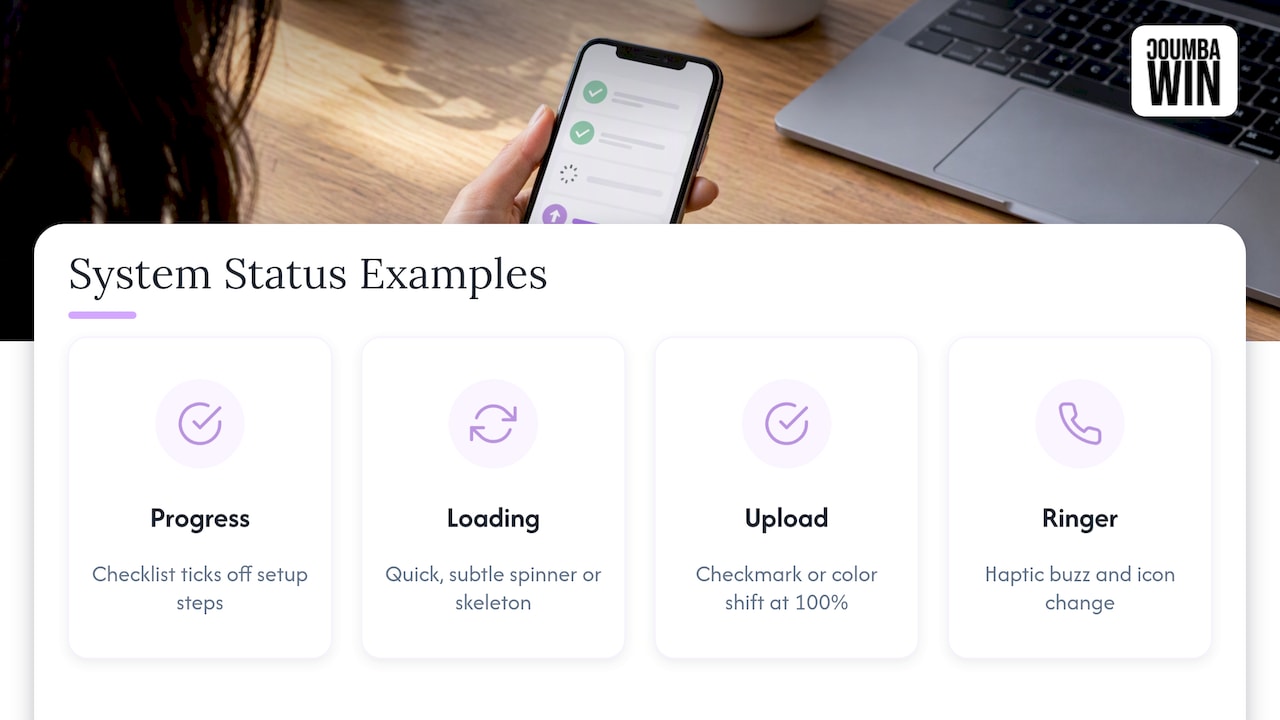
5. The progress checklist. A checklist that ticks off as users complete setup steps turns a vague onboarding into a short, winnable game. Userpilot highlights Attention Insight’s real-time checklist progress bar as a good version of this.
6. The loading spinner or skeleton screen. It says “we’re working,” which is all most users need. Keep it quick and subtle. Hover effects, button transitions and loading spinners rarely cause problems if they stay fast and understated.
7. The upload bar with a finish moment. The bar fills, then does something small and satisfying at 100%: a checkmark, a color shift. That final beat is the difference between “did it work?” and “done.”
8. The phone ringer switch. Yes, Saffer’s own example again. A physical-feeling toggle, a small haptic buzz, and an icon change. It mirrors a real-world switch, so nobody has to think.
Preventing errors and guiding the user
9. The live password checker. The field highlights a problem while you type rather than after you submit. NN/g lists this kind of error-prevention cue among the legitimate uses of motion and feedback. Pair it with clear words; our post on microcopy examples and templates covers what to say in those moments.
10. The inline form validation. A green check beside a valid email, a gentle shake on an invalid one. Contact and newsletter sign-up forms are where this earns its keep, because every friction point there costs you a lead.
11. The onboarding nudge for logged-out users. In one case study of a food-delivery app’s benefits section, designers used microinteractions to bridge the low-engagement, non-logged-in experience, and reported conversion gains of over 50% in that part of the app. That’s one designer’s case study, not a promise, but it shows why onboarding is the place to invest.
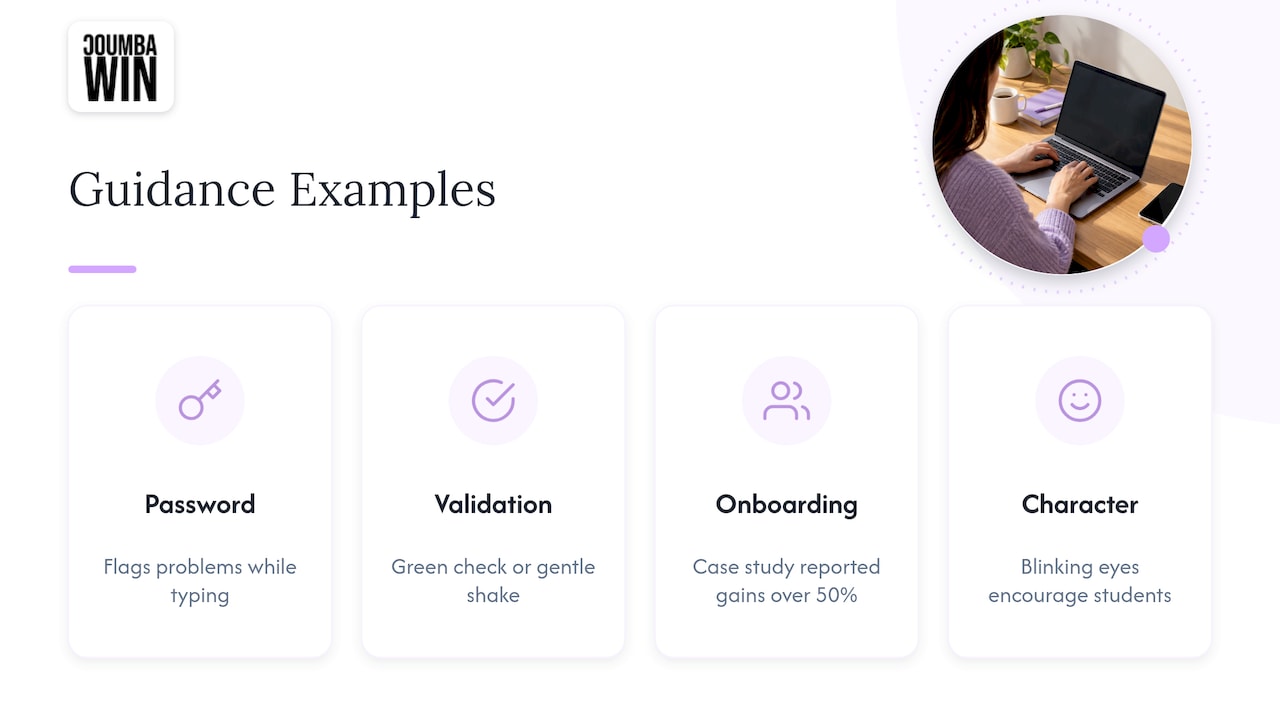
12. The friendly character that reacts. In a student learning app, one designer created a simple animated character with blinking eyes to give positive reinforcement and keep kids motivated. It’s playful, it has a job (encouragement), and it doesn’t block anything.
A quick summary table
| Example | Trigger | Feedback | Job |
|---|---|---|---|
| Reaction picker | Tap and hold | Emoji spread | Confirm, add depth |
| Wishlist heart | Tap | Fill and scale | Confirm |
| Hover card lift | Cursor hover | Slight movement | Signal clickability |
| Slide-in menu | Tap icon | Panel glides in | Orient the user |
| Checklist progress | Step completed | Bar advances | Show status |
| Spinner or skeleton | Page or data load | Looping placeholder | Show status |
| Live password check | Typing | Field highlights | Prevent errors |
| Inline validation | Leaving a field | Check or shake | Prevent errors |
What makes a microinteraction good (and what makes it a pain)
Here’s the honest part. Most bad microinteractions aren’t ugly. They’re unnecessary.
Make the trigger obvious, or invisible
Saffer talks about the goal of making these moments so intuitive that users barely register them, like flipping a physical light switch. If someone has to stop and think about what just happened, it’s too complicated or poorly timed.
Go usability-first, not delight-first
NN/g’s advice is to use motion as a signifier: it should show how an element behaves or where you are in the site. A page transition that tells you “you went deeper” is useful. A logo that does a victory lap every time you scroll is a hostage situation.
Keep it fast
If feedback arrives late, it stops being feedback. Users start tapping again, and now you’ve got double submissions and sad support emails. Speed also ties into design choices more broadly, which we dig into in how to improve website loading speed through design.
Match the context
A playful bounce works for a kids’ learning app. It might feel flippant on a screen where a founder is wiring money or a clinician is entering patient notes. Same pattern, different room.
The accessibility part nobody wants to skip
Motion can make some people physically unwell. Certain kinds of movement can trigger vestibular disorders, and blinking or flashing animation can be a problem for people with ADHD and other cognitive conditions, according to MDN.
Two practical rules:
- Respect the system setting. Browsers expose the user’s choice through the
prefers-reduced-motionmedia query. Honor it. MDN documents how to use it in its guide to media queries for accessibility. - Swap, don’t just strip. Instead of killing all feedback when reduced motion is on, replace a slide or bounce with a quick fade or a simple state change. The user still gets the confirmation, minus the movement.
On the standards side, WCAG’s Success Criterion 2.3.3, Animation from Interactions, says users should be able to turn off non-essential motion triggered by their interactions. Worth knowing: W3C lists it at Level AAA, the highest and most optional tier, so it’s a strong best practice rather than a baseline legal checkbox. Honoring the reduced-motion preference is one of the sufficient ways to meet it, and it’s cheap.
Smashing Magazine’s guide to accessible UI animations flags the riskier categories: large animated objects covering a big chunk of the screen, autoplay or auto-updating elements, and parallax or multidirectional movement. Those are the ones to gate behind a preference or a control.
One tip that pays off as you scale: define motion in your design tokens. Each microinteraction then has a standard version and a reduced-motion version, and your product stays consistent as new people join the team.
How to build your own, step by step
You don’t need a motion department. You need a process.
- Find the moment. List the points where users hesitate, drop off, or ask support “did that work?” Sign-up, checkout, onboarding and form errors are the usual suspects.
- Name the job. Confirm, show status, or prevent an error. One job per microinteraction.
- Sketch the four parts. Trigger, rules, feedback, loops. Write them in plain sentences before you open any design tool.
- Prototype it cheap. One designer testing a mobile app idea built a paper version, even printing a map and sliding it under a frame to simulate movement. It sounds silly. It works, and it’s far cheaper than rebuilding in code.
- Design the reduced-motion version at the same time. Not later. Later never comes.
- Ship, measure, trim. Look at completion rates and support tickets. If the animation doesn’t move a number or remove confusion, simplify it.
If you want the bigger picture on how these moments fit together across a whole product, our guide to what interaction design is is the natural next read. And for how motion shapes a brand’s feel on the marketing site, see the role of motion design websites in brand engagement.
Where microinteractions pay off for startups
You have limited design hours. Spend them where behavior changes.
- Landing pages and pricing: hover states, sticky CTAs, and clear button feedback. Our write-up on interactive website features that convert goes through startup examples, and the case for it is in why interactive web design converts.
- Mobile flows: haptics, swipe feedback, thumb-friendly toggles. See our mobile UX best practices for startups.
- Forms: validation, progress, and a clear success state.
- Content and publishing sites: subtle feedback like reading progress and save buttons matters too, and it sits inside a wider picture of how visual design shapes trust in a small business’s digital presence.
One caution for the “go wild” crowd: heavy animation can slow a page down. Elaborate effects are great until they’re the reason your Lighthouse score falls over.
Our take: small moments, big signal
We’ll be upfront about our bias. We design for startups, and we’ve watched founders pour weeks into a hero animation while their sign-up form silently fails with no error message. 😅
Here’s how we think about it. A microinteraction is a tiny promise: “we heard you.” Keep that promise consistently across a product and users trust it, usually without being able to say why. Break it, and no amount of brand polish saves you.
That’s why we don’t hand clients a pile of templates or generic effects. We treat motion as part of the system: defined alongside the brand, the components, and the accessibility requirements, so a founder’s product feels like one thing instead of fifteen. We start with the business problem (drop-off in onboarding, unclear pricing page, a demo that needs to land in a week) and only then decide what should move.
Our rule of thumb: if you can’t explain what a microinteraction does for the user in one sentence, cut it. If you can, make it feel great, make it fast, and give it a reduced-motion twin.
— Coumba Evelyn
Want these built into your product?
If you’d rather have a design partner who sweats these details with you, that’s what we do. Coumba Win handles web design and development, UI and UX design, and Webflow builds, with motion and interaction planned from the start. You can see how we build in Webflow development, and peek at the foundations we work from in our component library and style guide.
FAQ
What are microinteractions?
They’re small, single-purpose moments where a trigger, like a tap or a system event, gets a targeted response, like a color change, a bit of motion, or a vibration. Think of a like button animating or a field flagging an error. They exist to confirm actions, show status, or prevent mistakes.
What are microinteractions in UI design used for?
Mostly for feedback and guidance. They tell users the system registered their action, show that something is loading or saved, and warn them before they make an error. Done well, they also make a product feel responsive and human.
What’s a simple example of a microinteraction?
Turning off the ringer on your phone is Dan Saffer’s own example. On the web, the most familiar one is a heart icon that fills in when you add an item to a wishlist. Both are tiny, but you’d miss them instantly if they were gone.
Do microinteractions hurt accessibility?
They can if you ignore motion sensitivity. Use the prefers-reduced-motion media query to swap movement for a fade or a static state change, and avoid large, looping or autoplaying animation without a way to turn it off. Handled that way, they can make an interface clearer for everyone.
How do I test a microinteraction before building it?
Start with a paper or low-fidelity prototype and watch whether people understand it without explanation. Then check real behavior after launch: completion rates, error rates, and support questions. If it doesn’t help any of those, simplify it.
What’s the one tiny moment in your product you suspect is quietly costing you users? Tell us, we love a good detective story. 🕵️
#microinteractions #UXdesign #startupdesign #UIdesign #webdesign
Sources
- Microinteractions in User Experience, NN/g
- The Role of Animation and Motion in UX, NN/g
- Designing Microinteractions, Center Centre
- 12 Micro-Interaction Examples That Reshape User Behavior, Userpilot
- The Impact of Microinteractions on UI Design, UX Design Institute
- Understanding SC 2.3.3: Animation from Interactions, W3C
- Creating Accessible UI Animations, Smashing Magazine
- Accessibility Animation: Designing Motion for Inclusion
- Using media queries for accessibility, MDN
- Non-logged Onboarding Experience, iFood Benefícios case study
- Flagtag, Ian Go