Dashboard UI Patterns: Layouts, Charts and Rules That Work
Dashboard UI Patterns: Layouts, Charts and Rules That Work
A dashboard UI is a single screen that shows people the state of something they care about, fast enough that they can act and get back to their real job. The patterns that make that work are a small set of layouts (open, table, stratified, grouped, schematic), a clear top-to-bottom priority, charts matched to the question, and a plan for phones, roles and empty screens. Below is how we think about each one, with the traps we see founders walk into (we have walked into a few ourselves, no judgment). 😅
TL;DR
- A dashboard supports a bigger task. It should answer “is everything okay, and what needs me?” at a glance, not become a data playground.
- Pick a layout pattern on purpose: stratified for priority, grouped for related widgets, table for comparison, open for flexibility, schematic for maps.
- Put the most important chart top-left, add detail as you scroll down, and keep related charts together.
- Use tables when people need exact numbers, and plan the mobile card order before you design the desktop grid.
- Write the finding into the chart title. Don’t make users do the math.
Table of Contents
- What a dashboard UI actually is (and isn’t)
- The five dashboard layout patterns
- How to organize information inside the layout
- Choosing charts that tell the truth
- UX and accessibility: cutting cognitive load
- Mobile, roles, and the in-between states
- What good SaaS dashboards have in common
- Our perspective
- Need a dashboard your users actually open?
- A pre-launch checklist
- FAQ
- Sources
What a dashboard UI actually is (and isn’t)
Let’s start with the definition, because most dashboard problems begin with a fuzzy one. According to UX Magazine’s introduction to dashboard UIs, a dashboard gives rapid contextual information for a higher-level task, while a regular application interface usually completes a task by itself. Think of the car dashboard: you don’t drive the speedometer. You glance at it while driving.
Nielsen Norman Group frames dashboards as single-page collections of visualizations for at-a-glance information and quick action, not sprawling tools for complex exploration. Oracle’s Alta dashboard pattern says much the same in product terms: a single page of tiles that summarizes services and helps people decide, prioritize and jump into the right one.
Researchers add a useful nuance. A survey of what people mean by “dashboard” separates a visual genre (tiled charts and big numbers) from a functional genre (interactive, real-time monitoring). On mobile you may keep the function and lose the familiar tiles. That matters for you: the tiles are not the point. The monitoring job is.
Should you build a dashboard at all?
Honest question, and one we ask every founder. GOV.UK’s dashboard guidance says dashboards fit when users come back often, the data updates regularly, and users already have the context to read it. They fit poorly when the insight needs a lot of explaining. The same guidance warns that dashboards can overwhelm people, leave key findings for users to figure out, go stale as needs change, and be hard to make accessible across devices.
So before you open your design tool, write one sentence: “This dashboard helps [role] decide [decision] by showing [few things].” If you can’t finish it, you don’t have a dashboard yet. You have a pile of charts.
The five dashboard layout patterns
The Dashboard Design Patterns project, an academic catalog, describes five layout families: open, table, stratified, grouped and schematic. They aren’t mutually exclusive, and most good SaaS dashboards blend two. Here is how we use them.
| Pattern | What it does | Best fit | Watch out for |
|---|---|---|---|
| Open | Flexible widget arrangement, weak meaning from position | Customizable home screens, user-built boards | Chaos if nobody decides what goes first |
| Table | Rows and columns support comparison | Comparing accounts, campaigns, regions or products | Dense grids that nobody scans |
| Stratified | Top-to-bottom priority bands | Overview first, detail later; exec summaries | Burying urgent items in a lower band |
| Grouped | Related widgets visibly belong together | Admin panels with distinct areas (billing, usage, support) | Too many groups competing for attention |
| Schematic | Uses an external structure such as a map | Logistics, field ops, anything spatial | Forcing a map on data that isn’t spatial |
Stratified: the default we reach for
If you’re unsure, go stratified. The Elastic UI Framework’s good practices recommend identifying users and the main goal first, placing the most important charts at the top, adding detail as you move down, and organizing sections in rows. It works because people read top to bottom and the page does the prioritizing for them.
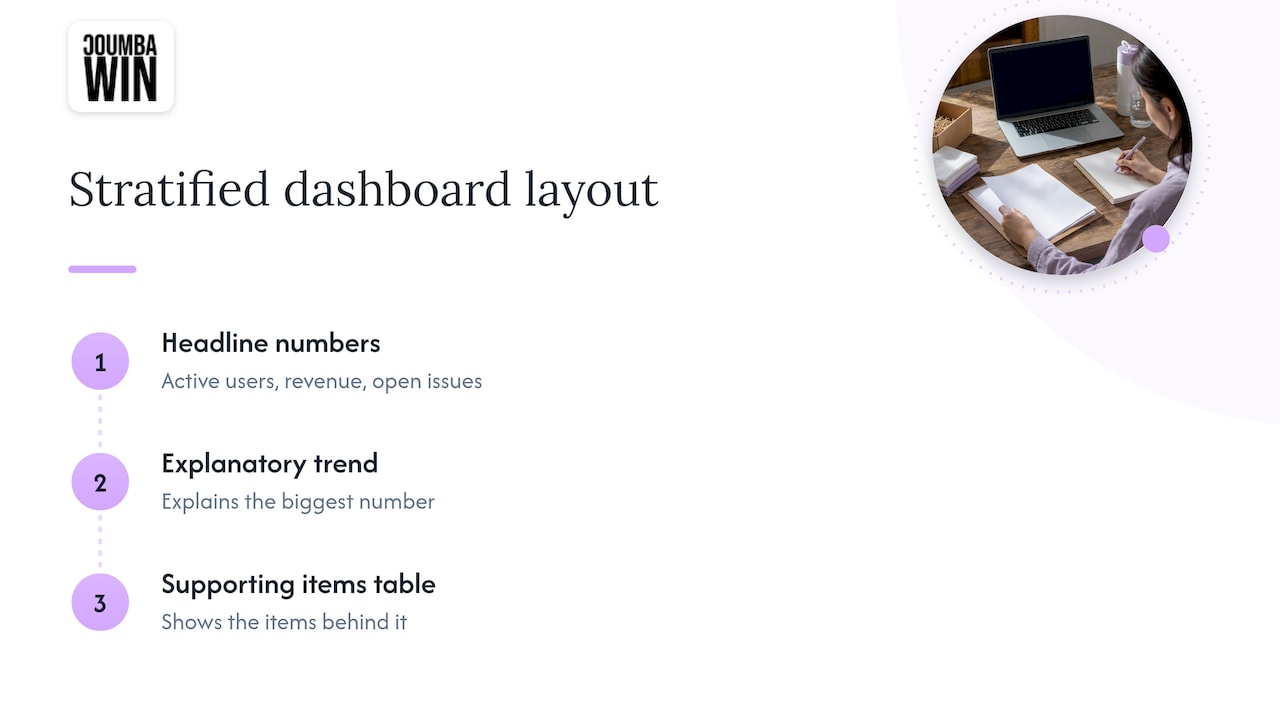
A SaaS example in plain terms: row one has three headline numbers (active users, revenue this period, open issues). Row two has the trend that explains the biggest number. Row three has the table of items behind it. Nobody has to hunt.
Grouped: for admin panels that do many jobs
Admin dashboards often serve several jobs at once: billing, user management, system health. Grouping puts related widgets in visible clusters with clear labels and spacing, so the “payments” cluster reads as one thing. Keep related charts close together, as Elastic advises, and give each group a heading that says what question it answers.
Table: when comparison is the whole point
Tables get a bad rap in dashboard land because they look less sexy than a donut chart. They’re often the right call. Material Design positions data tables as the home for raw data, especially in desktop enterprise products, with sorting, row selection, querying and an accompanying visualization. If someone needs to find account #4,812 and see its exact number, give them a table. (Please, for the love of all that is holy, don’t make them hover over a bar to read a value.)
Open and schematic: use sparingly
Open layouts suit products where users build their own board. The cost is that position carries no meaning, so you need strong defaults. Schematic layouts, like a map, shine when location is the data. If it isn’t, skip it.
How to organize information inside the layout
Pattern is the skeleton. These habits are the muscle.
- Decide the top three things. Oracle’s perspective is that tiles should offer useful overviews and, where it makes sense, high-level actions or a direct way into the detailed service. A tile that only decorates the page gets deleted.
- Lead with summary, follow with detail. Use reading direction: summary higher, detail lower.
- Group by question, not by data source. Users think “how’s onboarding going?”, not “what’s in the events table?”
- Use rows as sections. Consistent rows and margins make a page feel calm even when it’s busy.
- Cap the count. If you can’t squint at the page and tell what matters, there are too many widgets.
Tabs: handle with care
Tabs feel like a tidy fix for clutter. GOV.UK’s tabs guidance says to use them only when content is clearly separable, the first tab is the most relevant, and users don’t need to see or compare all sections together. Tabs hide content and can hurt discovery and comparison. On a monitoring dashboard, hiding the thing someone needs to compare is usually a bad trade.
Choosing charts that tell the truth
Chart choice is where good dashboards earn trust. A few rules we lean on, all backed by design systems from teams that publish theirs:
- Match proportions to the data. Elastic says to avoid charts that are too narrow or short, and that wide, horizontal proportions generally work well for time-series trends. Scatterplots can be squarer.
- Use a table for precise numbers. Charts show shape. Tables show values.
- Write titles that state the trend. GOV.UK’s chart guidance recommends concise, front-loaded, sentence-case titles describing the main trend, with a subtitle naming the measure, coverage and time period. “Sign-ups rose after the pricing change” beats “Sign-ups by week.”
- Label everything. Axes, units, annotations near the relevant marks, and a specific data source per chart. Shorten long category labels.
- Keep numbers steady. GOV.UK also recommends tabular numerals (equal-width digits) for compared numbers and live counters, so digits don’t jitter as they update.
That last one is a tiny detail that makes a dashboard feel expensive. It costs one line of CSS or a font setting.
A quick chart-picking cheat sheet
- Trend over time: wide line or area chart.
- Compare a few categories: horizontal bars with sorted values.
- Exact lookups or many columns: table with sortable headers.
- Single status: a big number with a small comparison, not a gauge that takes up a third of the screen.
If your dashboard tracks content or marketing performance, it helps to know which indicators deserve a headline slot. A guide to blog analytics for growth is a good way to sort the numbers that move decisions from the ones that just look busy.
UX and accessibility: cutting cognitive load
The goal is for people to answer monitoring questions quickly. Nielsen Norman Group’s view is that a dashboard should minimize the processing and interaction needed, rather than turning into an all-purpose exploration environment. GOV.UK’s view complements it: start from user needs, then add hierarchy, guidance and brief explanations, because a pile of charts doesn’t explain itself.
What that looks like in practice:
- Proximity and consistency. Related charts together, the same color meaning everywhere (if red means “overdue” on one card, it never means “revenue” on another).
- Self-explanatory titles and concise numbers. Say “$48K” before you say “$48,213.77,” and put the exact figure in a table or tooltip.
- Accessible tables. GOV.UK’s table guidance calls for captions and header scope so assistive technology can read them, right-aligned numbers, and splitting or reducing very large datasets.
- Don’t rely on color alone. Pair color with labels, icons or patterns.
- Write the microcopy. Empty-state text, error messages and tooltips make or break trust. We covered that in our microcopy examples and templates.
If your dashboard is going to live inside a product that serves lots of people, an accessibility audit before launch is cheaper than a rebuild after. It’s one of the things we offer, and we’d rather find the contrast problems than have your customers do it.
Mobile, roles, and the in-between states
Desktop dashboards are easy to love and easy to break. Three places they usually break:
Mobile
PatternFly’s dashboard guidance recommends deciding which cards belong in front before you arrange the page, and planning card order for when a multi-column desktop layout collapses into one column. Whatever lands at the top of that single column is what mobile users see first, so it had better be the most important card.
Sizing matters too. Material Design’s layout metrics suggest touch targets of at least 48 by 48 dp with about 8 dp spacing between them, and 16 dp screen margins on mobile. For more on this, see our mobile UX design best practices for startups.
When content doesn’t fit, the 2022 Dashboard Design Patterns study names five approaches: screen-fit, overflow, detail-on-demand, parameterization and multiple pages. The study frames this as a real tradeoff between fitting everything in view and exposing more through interaction, scrolling, parameters or extra pages. Choose consciously. On a phone, detail-on-demand (tap a card to see more) usually beats cramming.
Roles
A founder, a support lead and a finance admin all open the same product and want different first screens. The honest approach is to define the two or three roles that matter, decide each role’s top three tiles, and let the stratified order change by role. Resist the urge to ship a fully open, drag-everything layout on day one. Customization is a feature you earn after the defaults work.
Empty, loading and stale states
New accounts have no data. That’s your first impression. An empty dashboard should say what will appear, how long it takes, and offer one action to get started. Loading should preserve the layout (skeleton cards) so nothing jumps. And because GOV.UK warns that dashboards go out of date, show a “last updated” stamp wherever the data isn’t live.
What good SaaS dashboards have in common
We won’t pretend to rank specific products here, and you shouldn’t copy any single screen anyway. But patterns repeat across the good ones you’ll find on inspiration galleries:
- A small row of headline numbers, each with a comparison to the previous period.
- One primary trend chart that answers the headline question.
- A working table underneath with filters, sorting and a way to open any row.
- One obvious next action (invite teammates, fix the failed payment, review the flagged item).
- Quiet visual design: restrained palette, generous spacing, and color reserved for meaning.
Galleries are great for spotting these. Just remember that a pretty screenshot has no real data in it. Test your layout with ugly data: zero values, enormous values, very long names, and a month with no activity.
Our perspective
Here’s what we’ve learned working with startups: the dashboard is rarely the problem. The unanswered question behind it is. When a founder says “we need a dashboard,” what they usually mean is “I keep getting surprised, and I’d like to stop.” So we start there, with the surprise, and work backward to the two or three signals that would have prevented it.
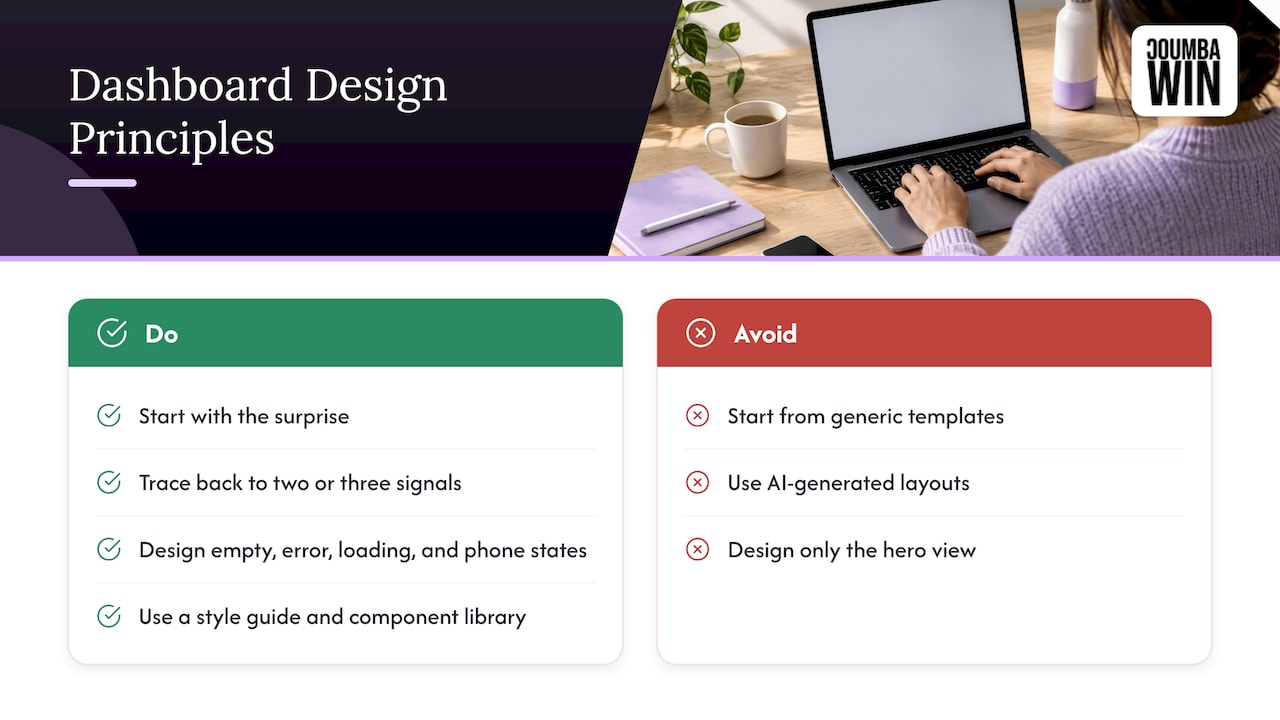
We’re also stubborn about two things. First, we don’t start from generic templates or AI-generated layouts, because a dashboard is a product surface that your team and customers live in daily, and it should reflect your real data and your real decisions. Second, we design the unsexy states (empty, error, loading, tiny phone screen) at the same time as the pretty hero view, because those are the moments users actually judge you.
If a design system sits underneath, even better. Shared tokens and components keep a dashboard consistent as it grows, which is why we like pairing this work with a documented style guide and component library. Build it once, scale it quietly.
— Coumba Evelyn
Need a dashboard your users actually open?
We design and build startup-ready product interfaces: UI and UX design, Webflow and web development, and accessibility audits, all in close collaboration with founders. If you’re staring at a messy admin panel or a blank Figma file, tell us what’s surprising you and we’ll help turn it into a screen that answers the question.
Want to see how we handle structure and layout on the marketing side? Our look at innovative website layouts for startups is a good companion, and our Webflow work shows what we ship.
A pre-launch checklist
Run this before any dashboard goes live:
- Can you finish the sentence “This helps [role] decide [decision]”?
- Is the most important item top-left on desktop and first on mobile?
- Are related charts grouped, and do sections have clear headings?
- Does each chart title state the finding, with measure, scope and period?
- Are exact values available in a table or tooltip?
- Do tables have captions, header scope and right-aligned numbers?
- Is color never the only signal?
- Did you design empty, loading, error and stale states?
- Have you tested with zero, huge and messy data?
- Does someone own maintenance, so it doesn’t rot?
If you tick eight or more, you’re ahead of most. Which one are you missing? Be honest. We won’t tell. #dashboarddesign #SaaS #uxdesign
FAQ
What is the difference between a dashboard and a regular app screen?
A regular application screen usually completes a task directly, like editing a record or sending an invoice. A dashboard supplies quick contextual information in support of a larger task, so people can monitor conditions and act when needed. If users spend long stretches working inside it, you’re probably building an app, not a dashboard.
Which dashboard layout should a SaaS startup use first?
Start with a stratified layout: headline numbers on top, the explaining trend next, a working table below. Add grouping when you have distinct areas such as billing and usage. Leave fully customizable open layouts for later, once you know what users actually look at.
When should I use a table instead of a chart?
Use a table when people need precise numbers, want to compare across many attributes, or need to sort, select and act on rows. Use a chart when the shape or trend is the message. Many dashboards pair them: a trend chart for the story and a table for the details.
How do I make a dashboard work on mobile?
Decide card priority before you design the desktop grid, because a multi-column layout collapses into one column on a phone and the top card gets the most attention. Keep touch targets at least 48 by 48 dp, and use tap-to-expand detail instead of squeezing every chart on screen.
Sources
- Dashboard UIs: An Introduction, UX Magazine
- Dashboards: Making Charts and Graphs Easier to Understand, Nielsen Norman Group
- Oracle Alta UI Pattern: Dashboard
- What Do We Talk About When We Talk About Dashboards?
- Dashboards, GOV.UK Brand Guidelines
- Dashboard Design Patterns (catalog)
- Dashboard good practices, Elastic UI Framework
- Data tables, Material Design
- Tabs, GOV.UK Design System
- Charts, GOV.UK Brand Guidelines
- Table, GOV.UK Design System
- PatternFly Dashboard guidelines
- Metrics and keylines, Material Design
- Dashboard Design Patterns study, 2022
- How to Use Blog Analytics for Growth and Success